
Getting started
Add, edit, delete a collector
Datazoom provides an easy way to manage data collection. The steps below illustrate the simple process to add an application collector.
Contact Datazoom to learn more!
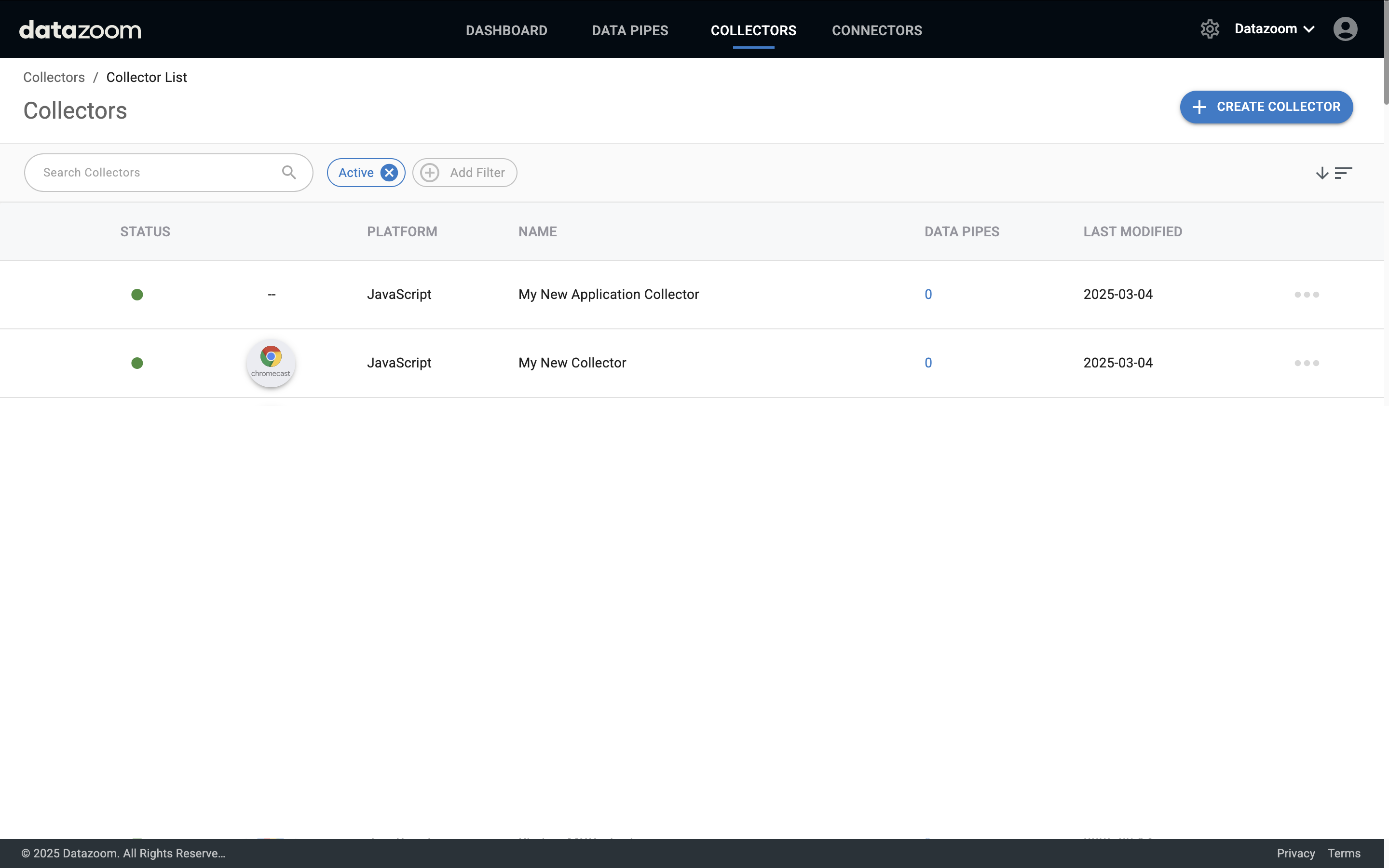
Navigate to the Collectors tab
Click the “Create Collector” button to begin the process to add a collector.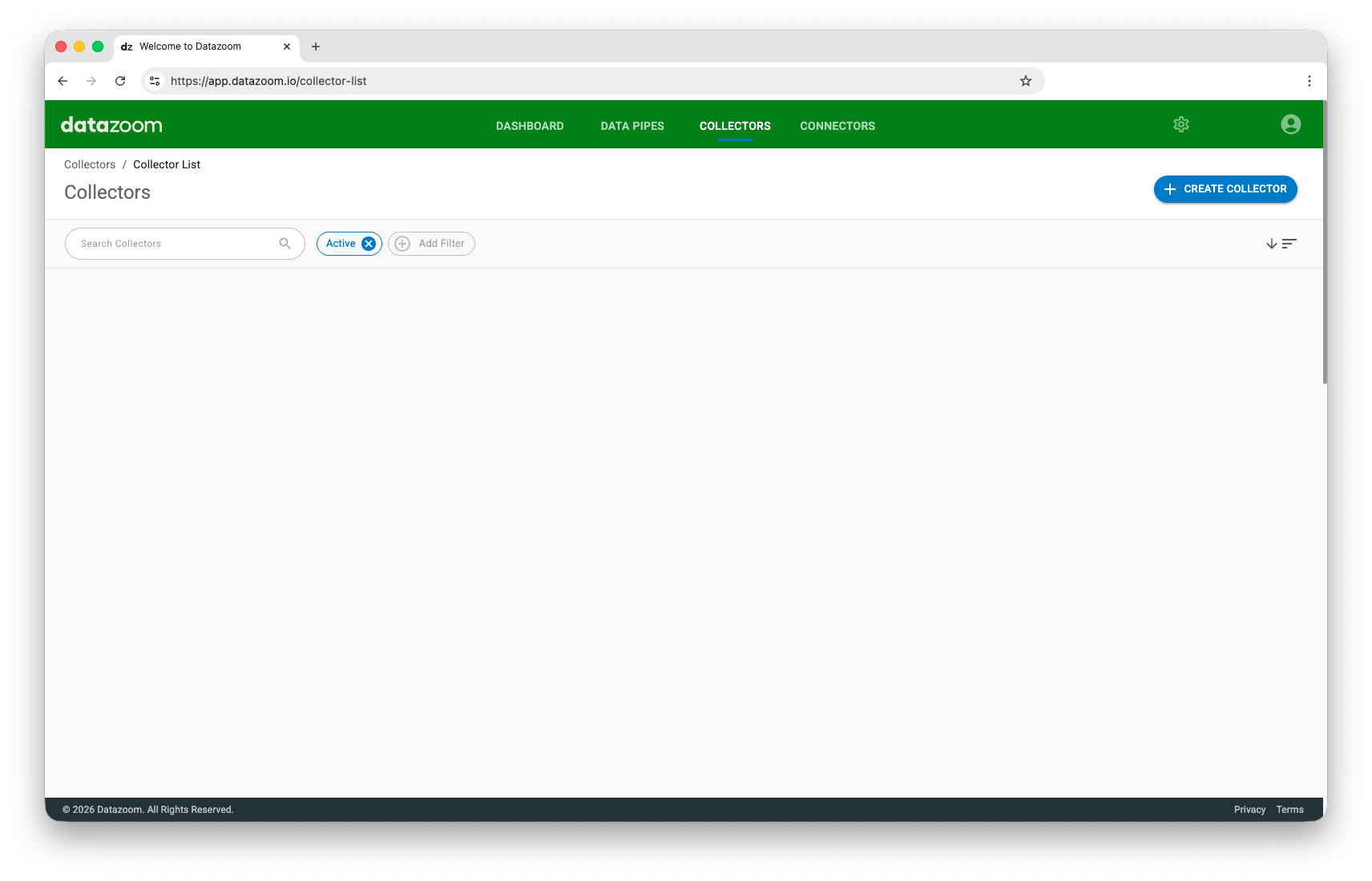
Create a collector Configuration from the choices presented.
Select the appropriate collector for your Platform and associated Media Player. Select “None” if you are not going to collect data from a video player. Give it a unique name then click “Save & Configure”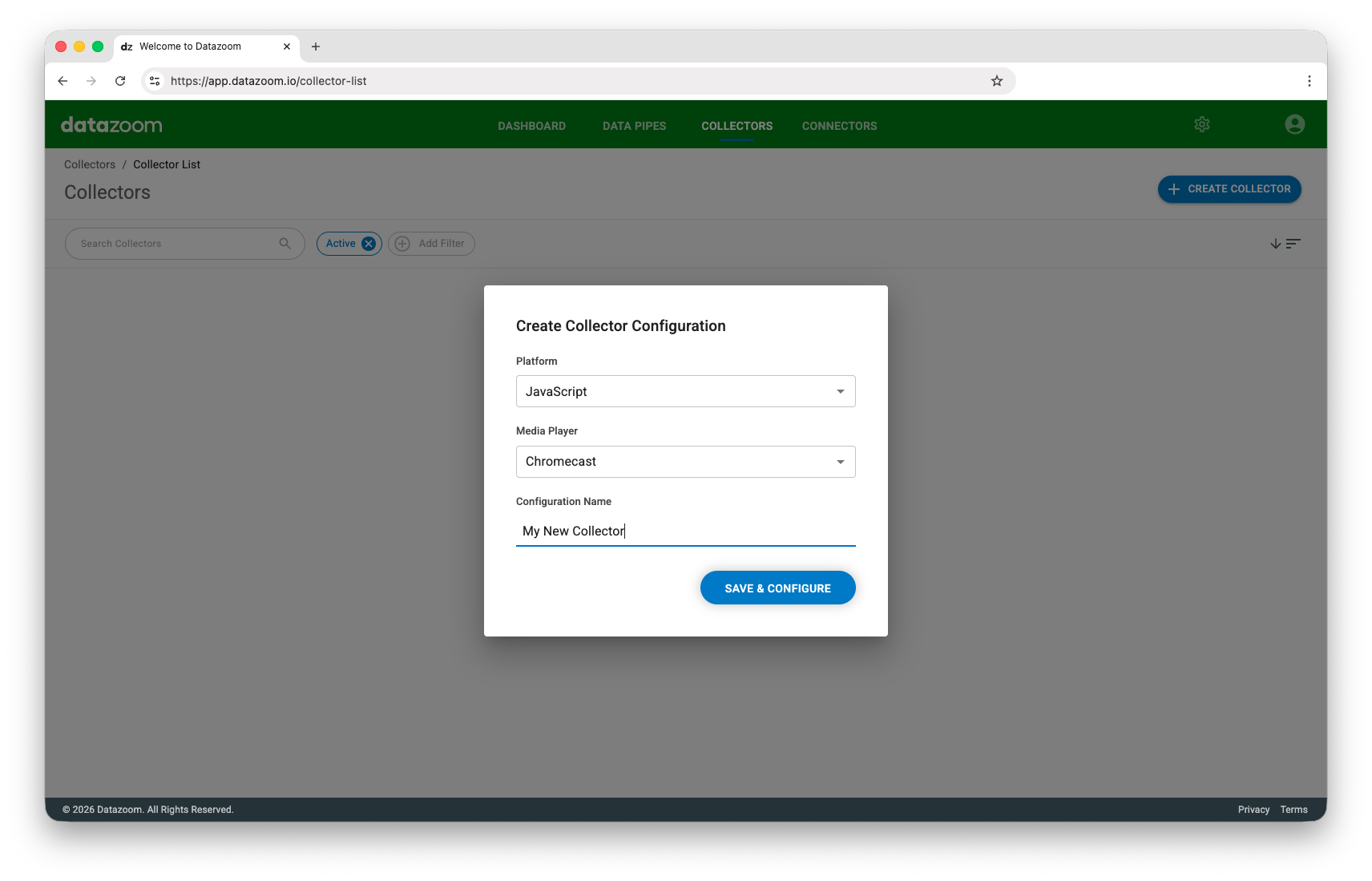
Settings
Configure the heartbeat interval, milestones percentages, qualified view triggers, ad framework, and if supported, CMCD options.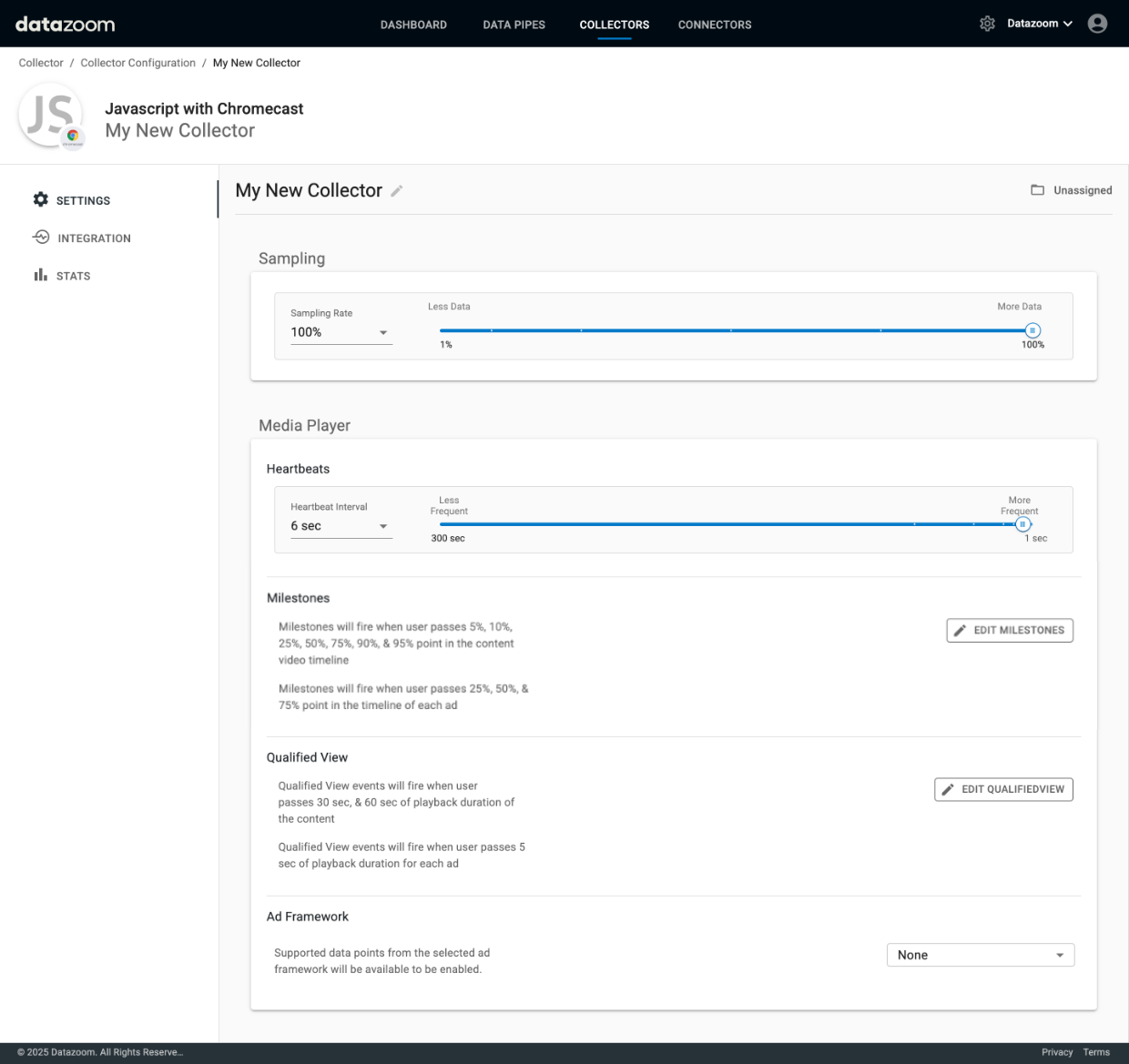
Integration
Here is where you can choose your preferred method for managing the integration, view status, and pause data collection if necessary.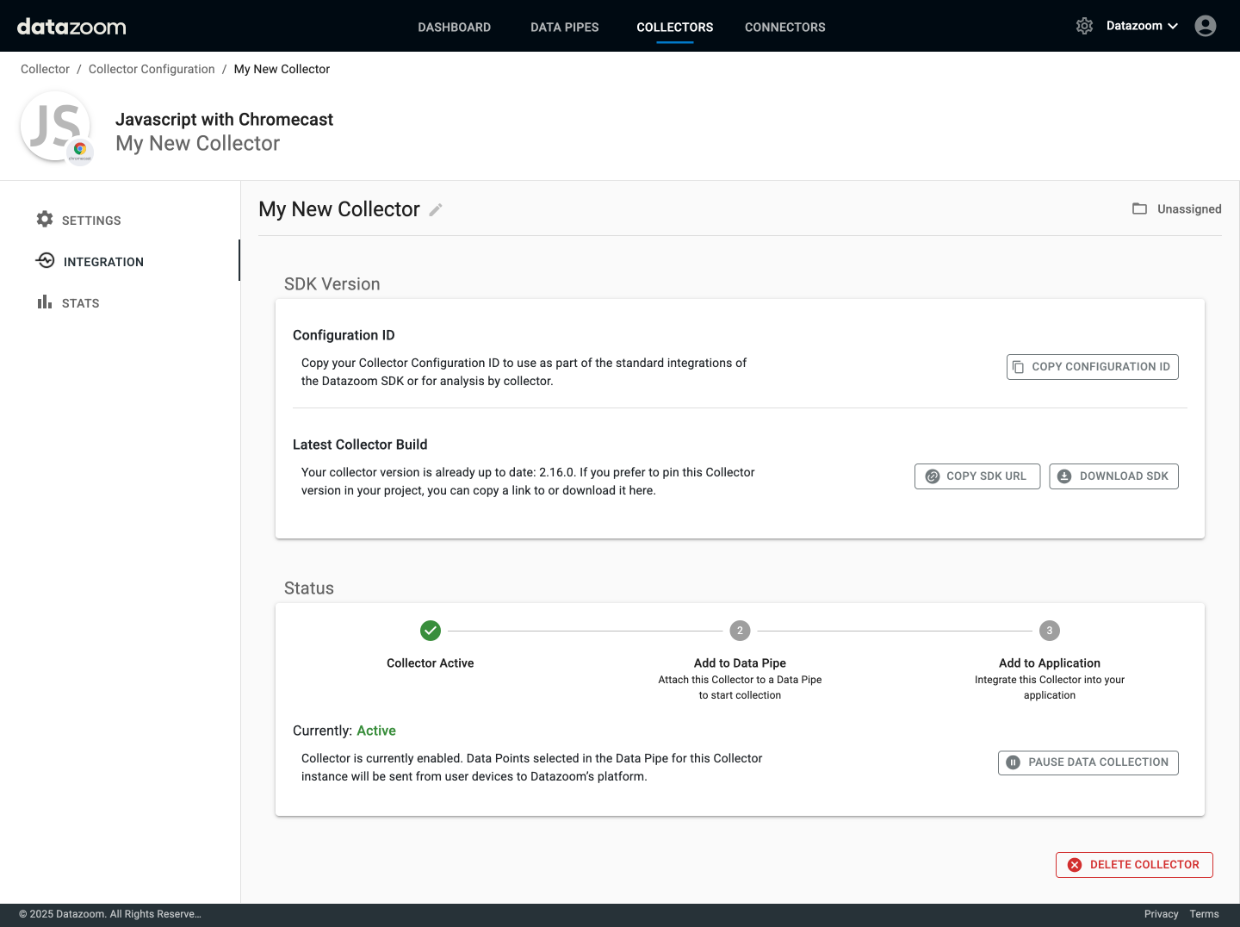
Review the integration documentation for your specific platform
Android Collector
iOS / tvOS Collector
Javascript Collector
Roku Collector
Datazoom's console UI allows an authenticated user with the proper role to edit an existing Collector configuration.
Contact Datazoom to learn more!
Editing a Collector is a simple task and allows one to make "Codeless" changes to the configuration.
Navigate to the Collector screen by clicking on "COLLECTORS". Click on the Collector that you wish to edit.
The following screen appears. Here you can change the name and configure the heartbeat interval, milestones percentages, qualified view triggers, ad framework, and if supported, CMCD options. When you are satisfied with your changes, click "SAVE CHANGES". The very next page load or app launch will include the updated configuration provided it is used in a data pipe.
Upon making modifications to your collector you will want to confirm that you see the expected changes in your data storage or analytics tool (i.e., connector).
Things to keep in mind:
All web pages and apps that were running prior to the configuration change will continue to use the previous configuration until that web page/app is re-loaded.
Any new web page/app that is launched will load the new configuration. You should see the new configurations reflected gradually as your viewers launch web page/app sessions.